
Silent Hill f Early Access Not Working: Complete Troubleshooting Guide
Experiencing issues with Silent Hill f early access? Here's everything you need to know to fix common problems and get back to the horror.
Many players are reporting that Silent Hill f early access isn't working properly. If you're facing similar issues, this comprehensive guide will walk you through proven solutions to get you back into the game quickly.
Why Silent Hill f Early Access Might Not Be Working
Early access issues for Silent Hill f can stem from various factors including Steam client problems, incorrect edition purchases, or technical glitches. Understanding the root cause is the first step toward resolution.
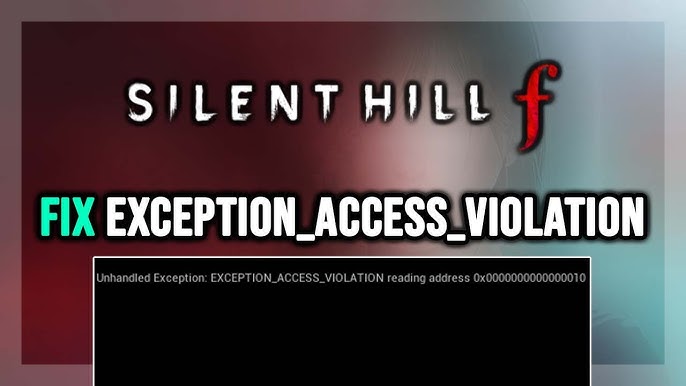
Step-by-Step Solutions for Silent Hill f Early Access Problems
1. Restart Steam and Check Your Library
The simplest solution often works. Completely close and restart the Steam client, then navigate to your library to verify if Silent Hill f is properly downloaded and playable.
Quick Steps:
- Completely exit Steam (including from system tray)
- Restart Steam client
- Check library for Silent Hill f
- Verify download status
2. Verify You Purchased the Correct Edition
Early access for Silent Hill f is exclusively available through the Digital Deluxe Edition. Many players mistakenly purchase the standard edition, which doesn't include early access privileges.
How to Check:
- Go to Steam Purchase History
- Verify edition purchased matches Digital Deluxe
- Check receipt email for confirmation
- Confirm price paid matches Deluxe Edition

3. Clear Steam Download Cache
Corrupted download cache can prevent proper game access. Clearing this cache often resolves installation and access issues.
Clear Cache Steps:
- Open Steam Settings
- Navigate to Downloads section
- Click "Clear Download Cache"
- Restart Steam when prompted
- Attempt to access Silent Hill f again
4. Steam Offline Mode Toggle
Sometimes switching to offline mode and back online can refresh your connection and resolve access issues.
Toggle Method:
- Go to Steam > Go Offline
- Wait 30 seconds
- Restart Steam and go back online
- Check if early access works
Advanced Silent Hill f Early Access Troubleshooting
Key Activation and Purchase Verification
If basic solutions fail, deeper investigation into your purchase and key activation history is necessary.
Purchase Verification
- Check receipt matches Deluxe Edition price
- Verify purchase date qualifies for early access
- Confirm regional restrictions don't apply
- Review payment method confirmation
Key Activation History
- Check account settings for key activation
- Verify Silent Hill f appears in activated products
- Look for any activation errors
- Confirm early access flag is enabled
Silent Hill f Early Access Fix Video Guide
Watch this comprehensive video tutorial that walks through all the troubleshooting steps for Silent Hill f early access issues.
When to Contact Steam Support for Silent Hill f Issues
If you've tried all solutions and Silent Hill f early access still isn't working, it's time to contact Steam Support for professional assistance.
Information to Provide Steam Support:
- Your Steam account name and purchase receipt
- Exact error messages received
- Steps you've already attempted
- Screenshots of the issue
- System specifications
Steam Support Contact Methods:
- Submit a ticket through Steam Support website
- Include "Silent Hill f Early Access" in subject line
- Provide detailed description of the problem
- Attach relevant screenshots and receipts
Preventing Future Silent Hill f Access Issues
Take proactive steps to ensure smooth access to Silent Hill f and future game releases.
Best Practices
- Always verify edition before purchase
- Keep Steam client updated
- Maintain stable internet connection
- Regularly clear download cache
System Maintenance
- Update graphics drivers regularly
- Ensure sufficient storage space
- Close unnecessary background applications
- Verify system meets game requirements
Quick Fix Summary
1. Restart Steam
Close and reopen Steam client
2. Check Edition
Verify Digital Deluxe purchase
3. Clear Cache
Settings > Downloads > Clear Cache
4. Offline Mode
Toggle offline/online mode
5. Contact Support
Last resort solution
Silent Hill f Requirements
Minimum Specs
- OS: Windows 10 64-bit
- Processor: Intel Core i5
- Memory: 8GB RAM
- Graphics: GTX 1060
- Storage: 50GB available